Getting Started
TIP
To follow this guide you need to have Apache Maven installed.
Generating A Project
The quickest way to get started with TrueLicense is by using its companion project, the TrueLicense Maven Archetype, to generate a custom project:
mvn org.apache.maven.plugins:maven-archetype-plugin:generate --batch-mode \
    -DarchetypeGroupId='global.namespace.truelicense-maven-archetype' \
    -DarchetypeArtifactId='truelicense-maven-archetype' \
    -DarchetypeVersion='4.1.4' \
    -DartifactId='stargazer' \
    -Dcompany='Company Inc.' \
    -DgroupId='com.company.product' \
    -Dpassword='unsafe2020' \
    -Dsubject='StarGazer 2020' \
    -DtrueLicenseVersion='4.1.4' \
    -Dversion='1.0-SNAPSHOT'
cd stargazer
chmod +x mvnw
./mvnw clean verify -Pintegration-test
For a complete list of properties, please check the Configuration Properties page. Please also check the Example Configurations page.
TIP
You should immediately check-in the generated project to some VCS. The generated project contains a .gitignore and .hgignore file for Git and Mercurial, respectively.
TIP
Don't confuse TrueLicense with its companion project, the TrueLicense Maven Archetype: While TrueLicense provides the API and its implementations, the TrueLicense Maven Archetype is a code generator for sample projects.
While both projects may have an independent release cycle, their version numbers typically match, as highlighted above.
TIP
As of version 4.1.4, both projects build on every LTS release from JDK 8 through 25, and the generated project targets Java 8 bytecode regardless of the JDK you use. So you can simply build with whatever recent JDK you have installed.
Generating A License Key
You can generate a license key and save it to the file license.lic like this:
$ java -jar keygen/target/*-keygen-*-standalone.jar generate license.lic -output -
{"consumerAmount":1,"consumerType":"User","holder":"CN=Unknown","issued":1565085418292,"issuer":"CN=Company Inc.","subject":"StarGazer 2020"}
You will typically sell and transmit the generated license keys to your customers so that they can install it into your software product.
Installing A License Key
For installing the license key, TrueLicense provides many options:
- There is an API for generating, installing, verifying and deleting license keys.
- For the same purposes, there is also a CLI - you have just used it to generate a license key.
- There is also a Swing based GUI for installing, verifying and uninstalling license keys.
- For the same purposes, there is also a ReST-based WSI.
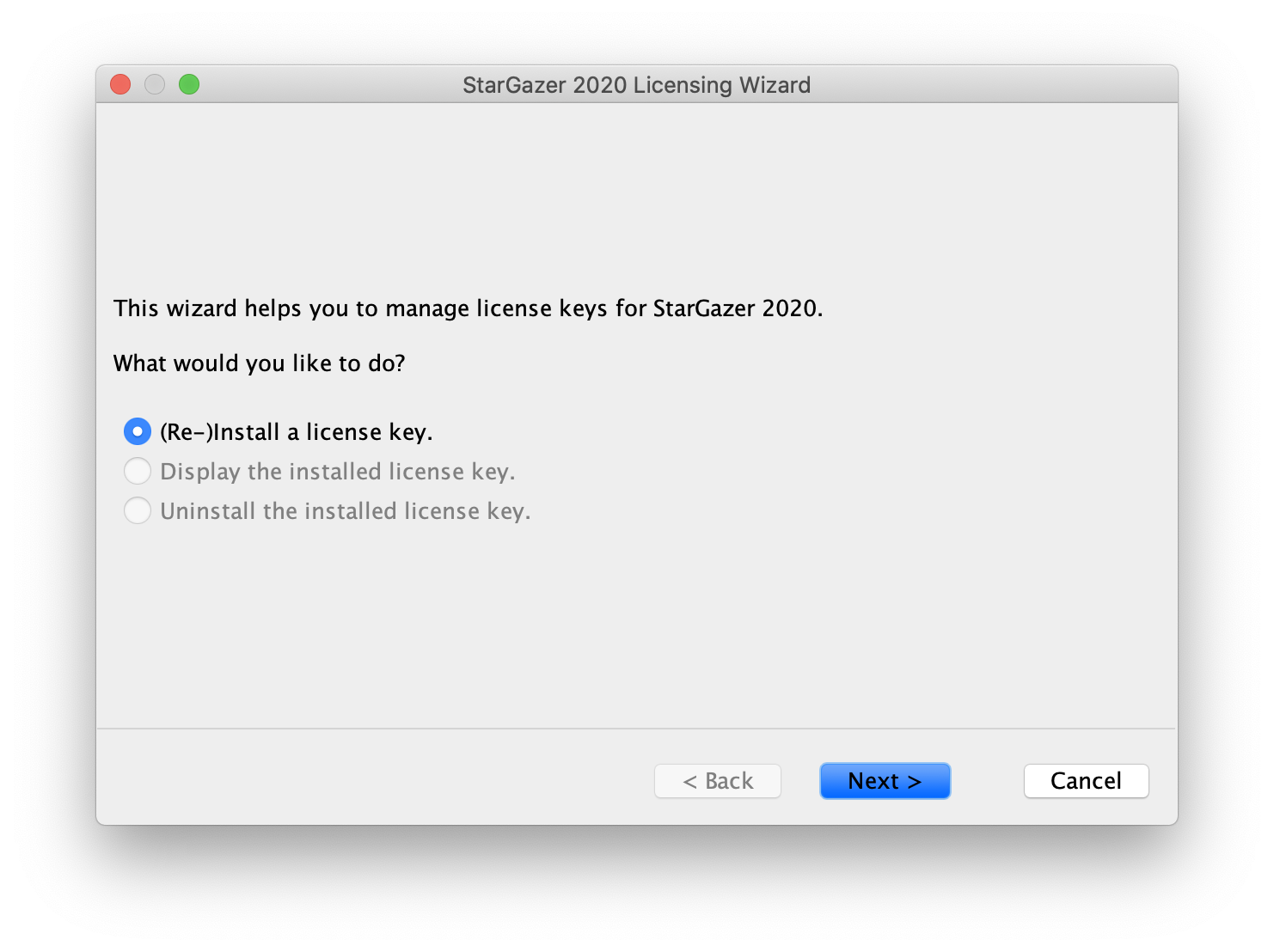
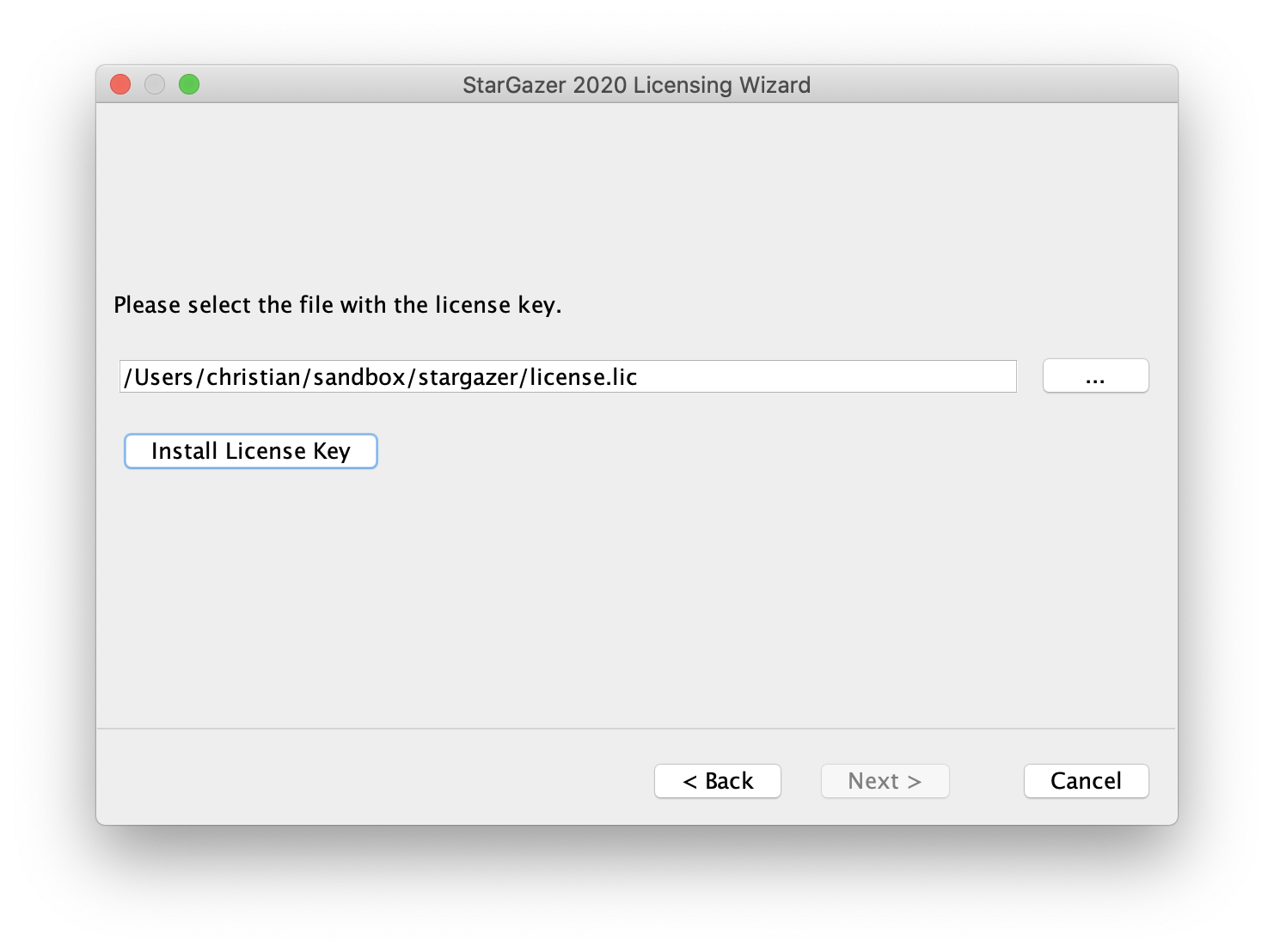
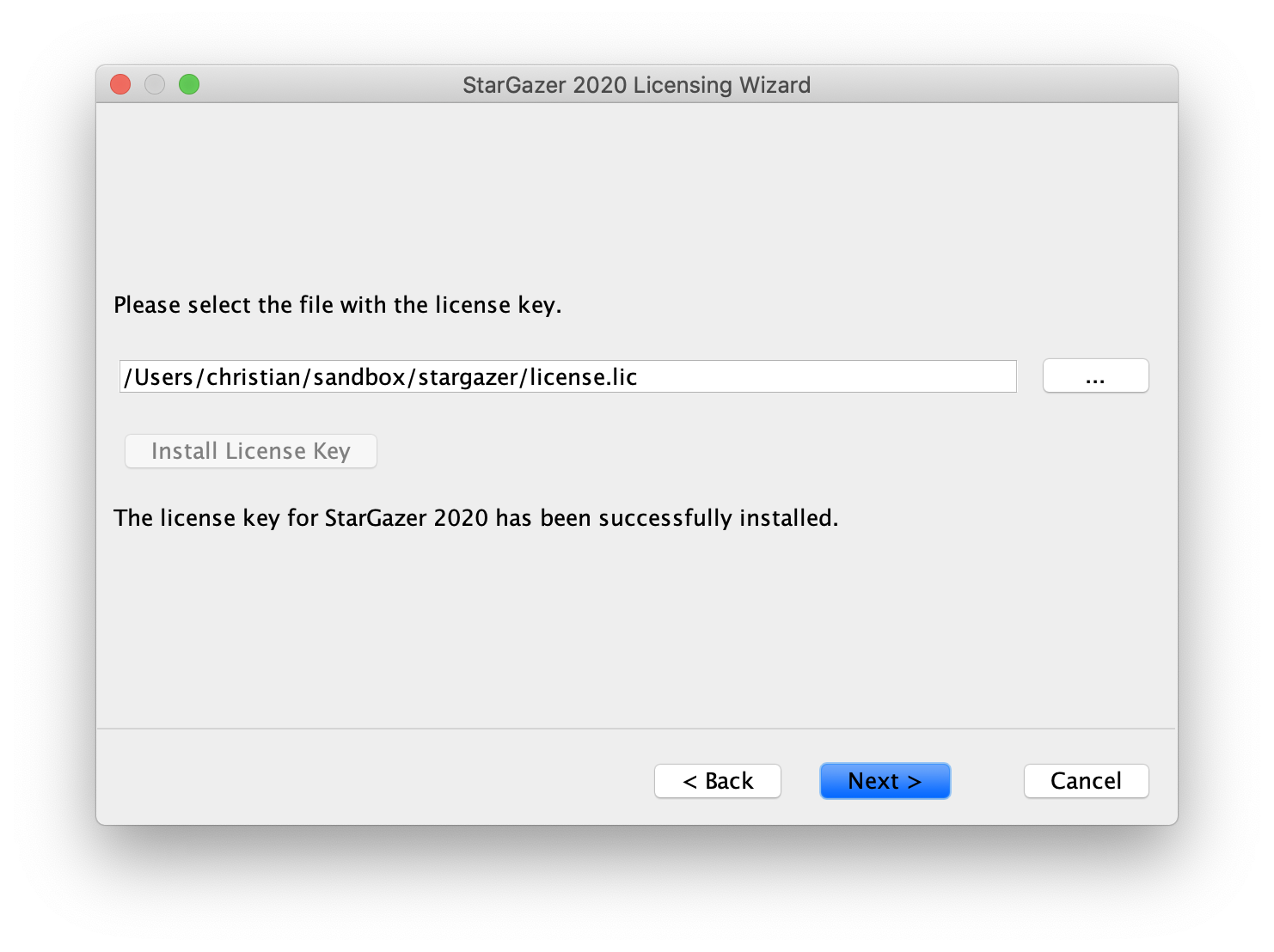
For example, you can install the previously generated license key using the GUI like this:
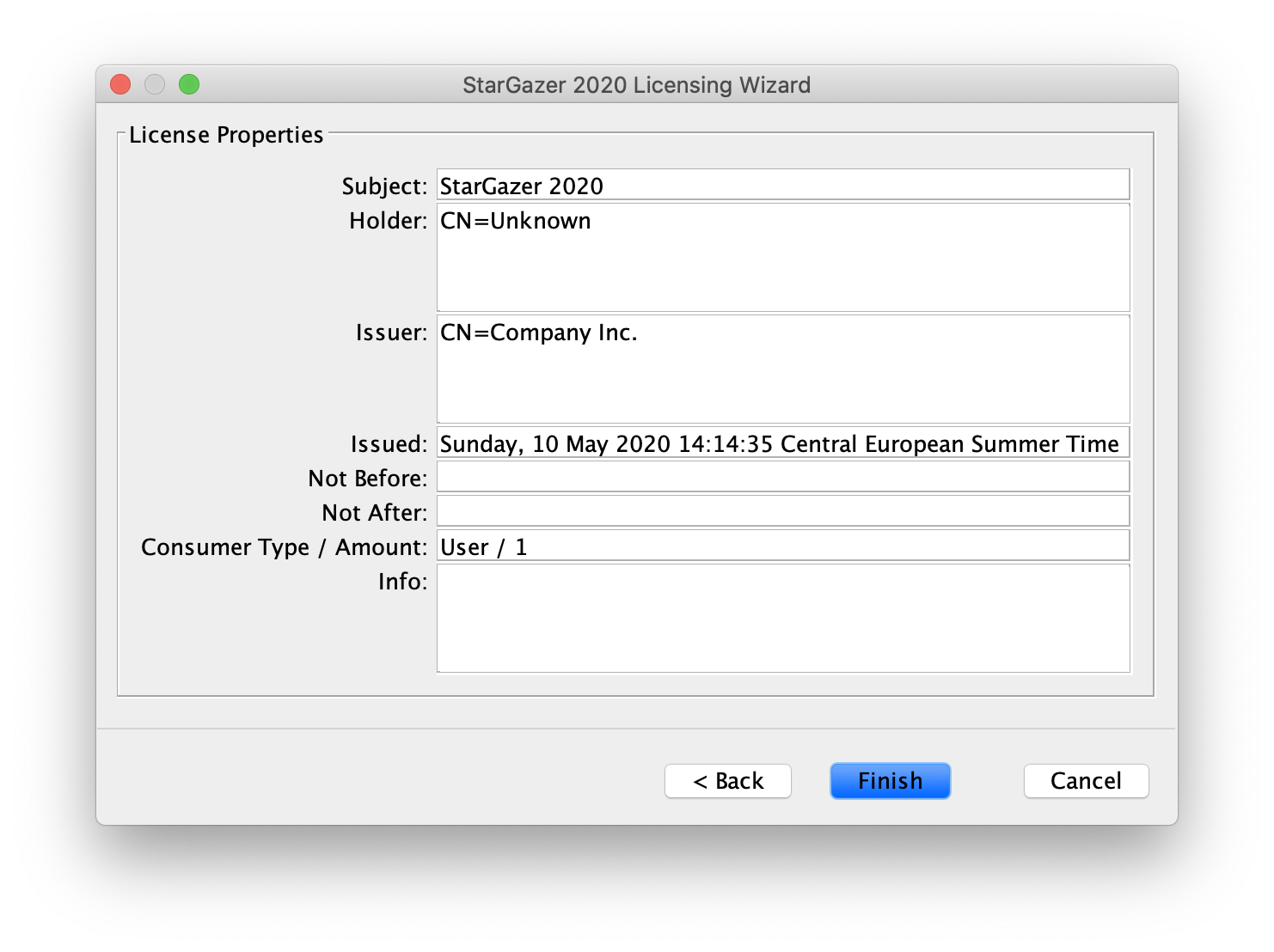
java -jar keymgr/target/*-keymgr-*-guarded.jar wizardFollow the instructions of the licensing wizard to install and verify the license key which was previously saved to the file license.lic. Eventually, the licensing wizard will show you the properties of the installed license key:
Uninstalling A License Key
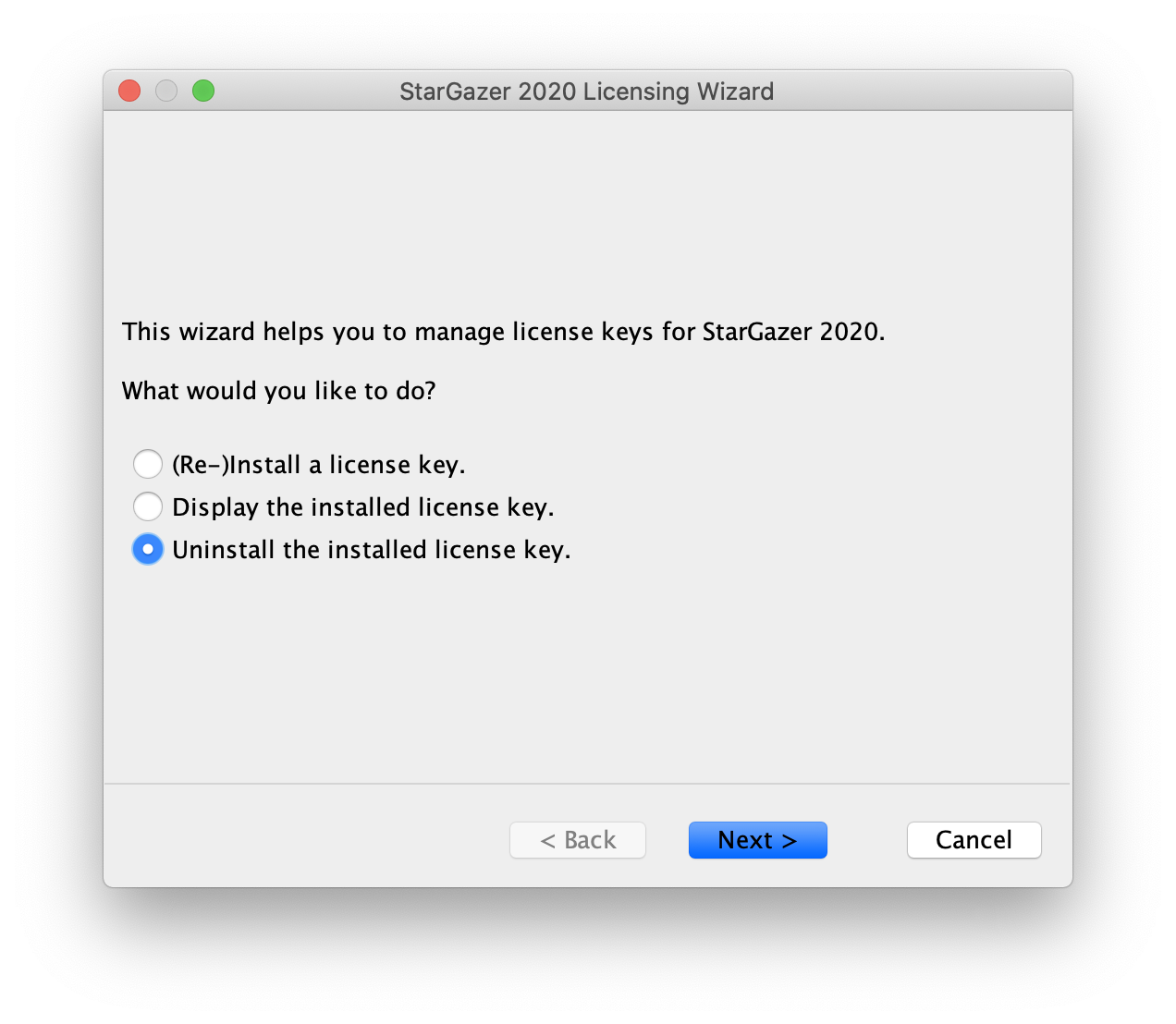
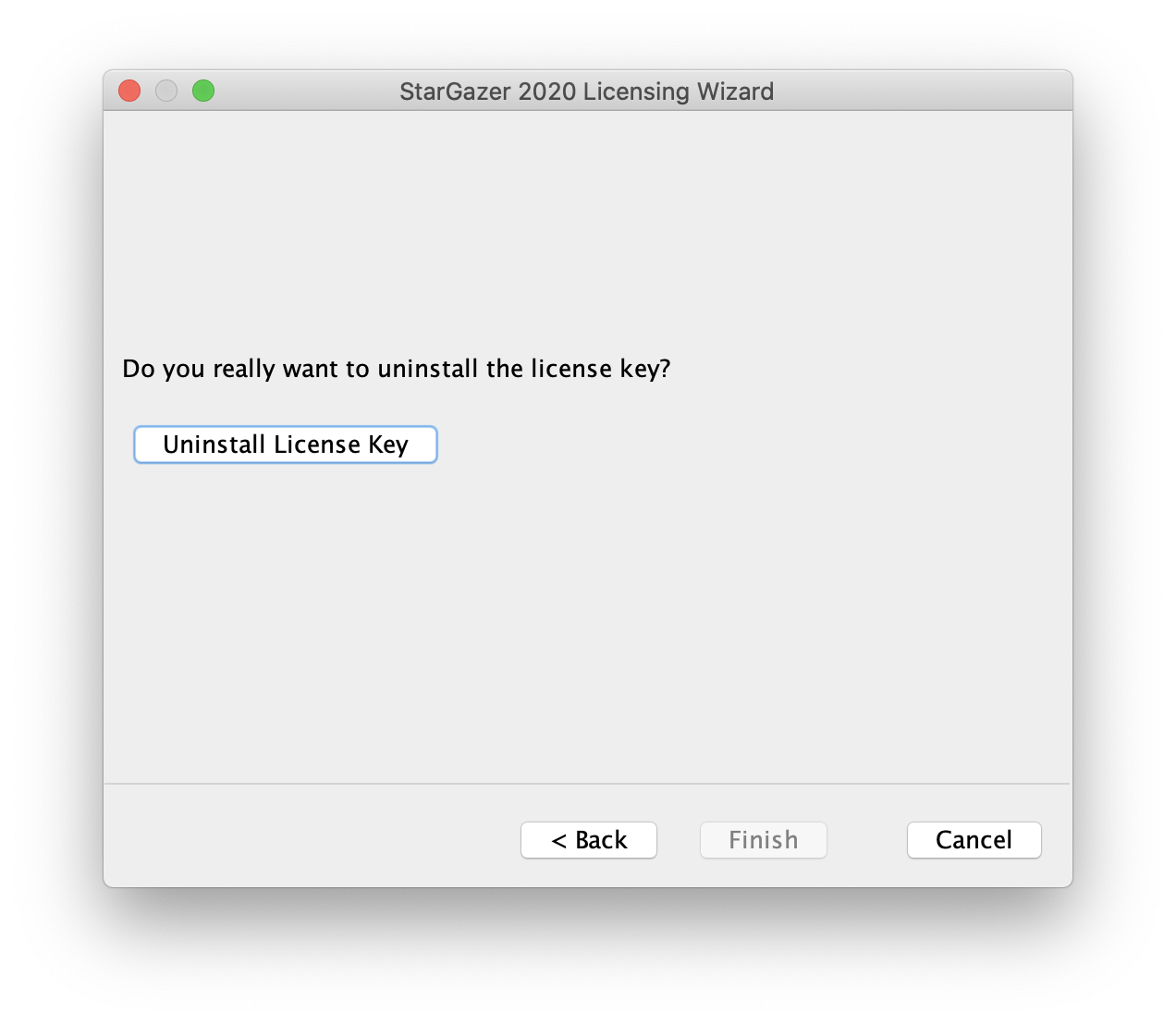
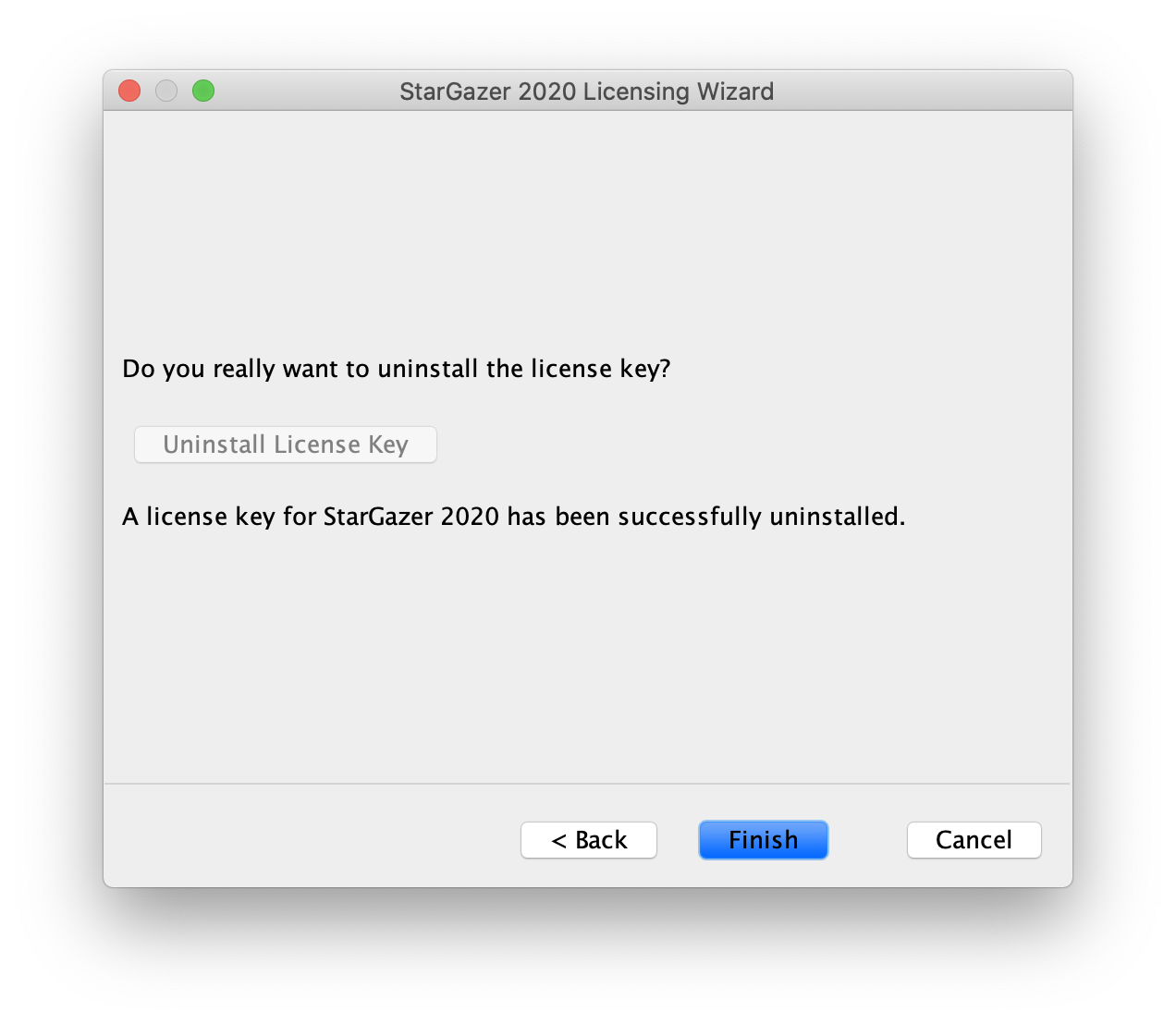
In the rare event that a user wants to uninstall a license key, this can be done with the licensing wizard, too:
TIP
This feature can get removed from the GUI with the property hideUninstallAction.
Free Trial Period
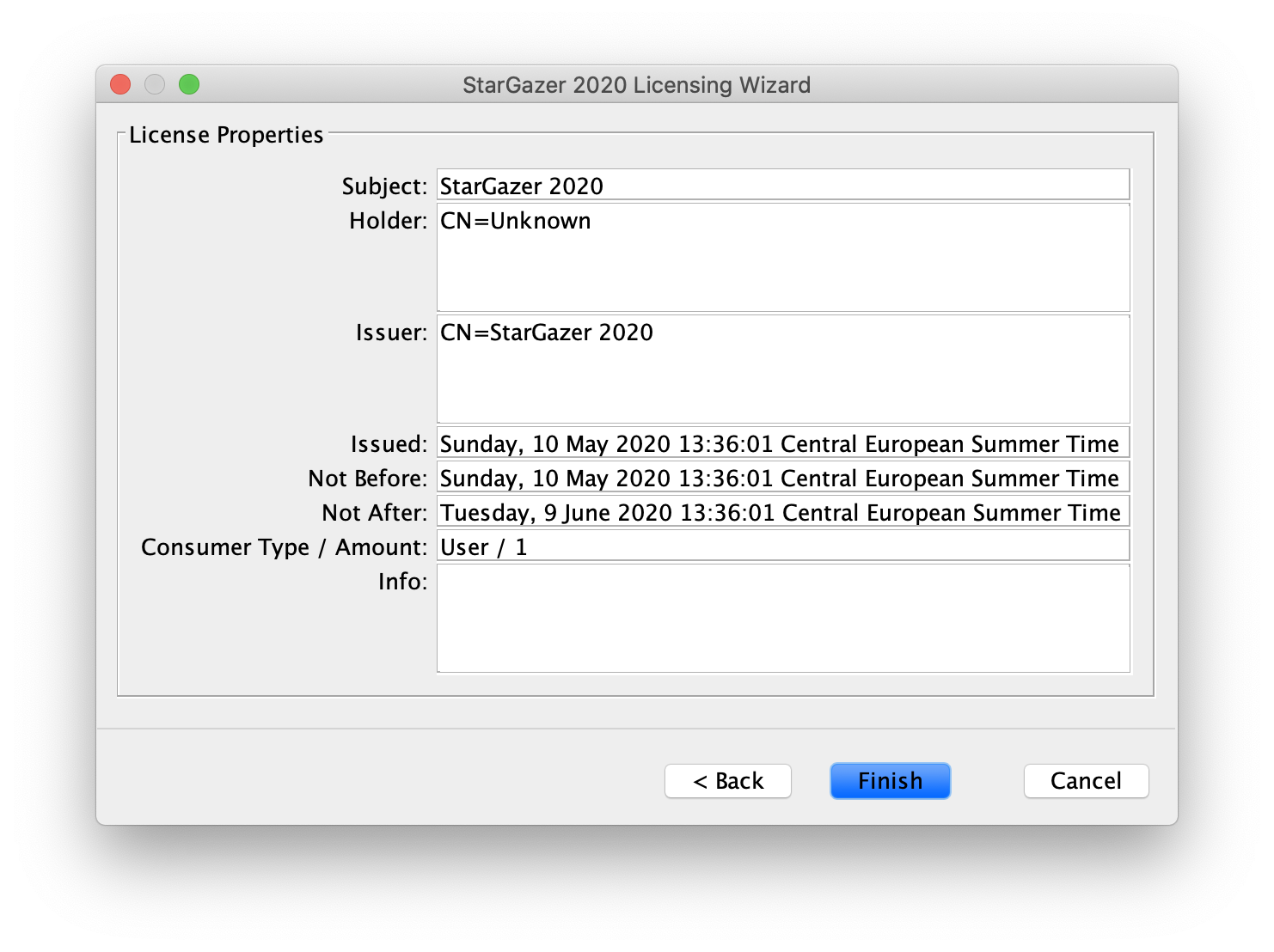
You can configure a free trial period (FTP) for your software product - see Free Trial Period example. If you follow this example, then a license key with a term of thirty days gets automatically generated for the user at first use. Once the FTP license key expires, the user needs to have a regular license key installed in order to continue using your software product.
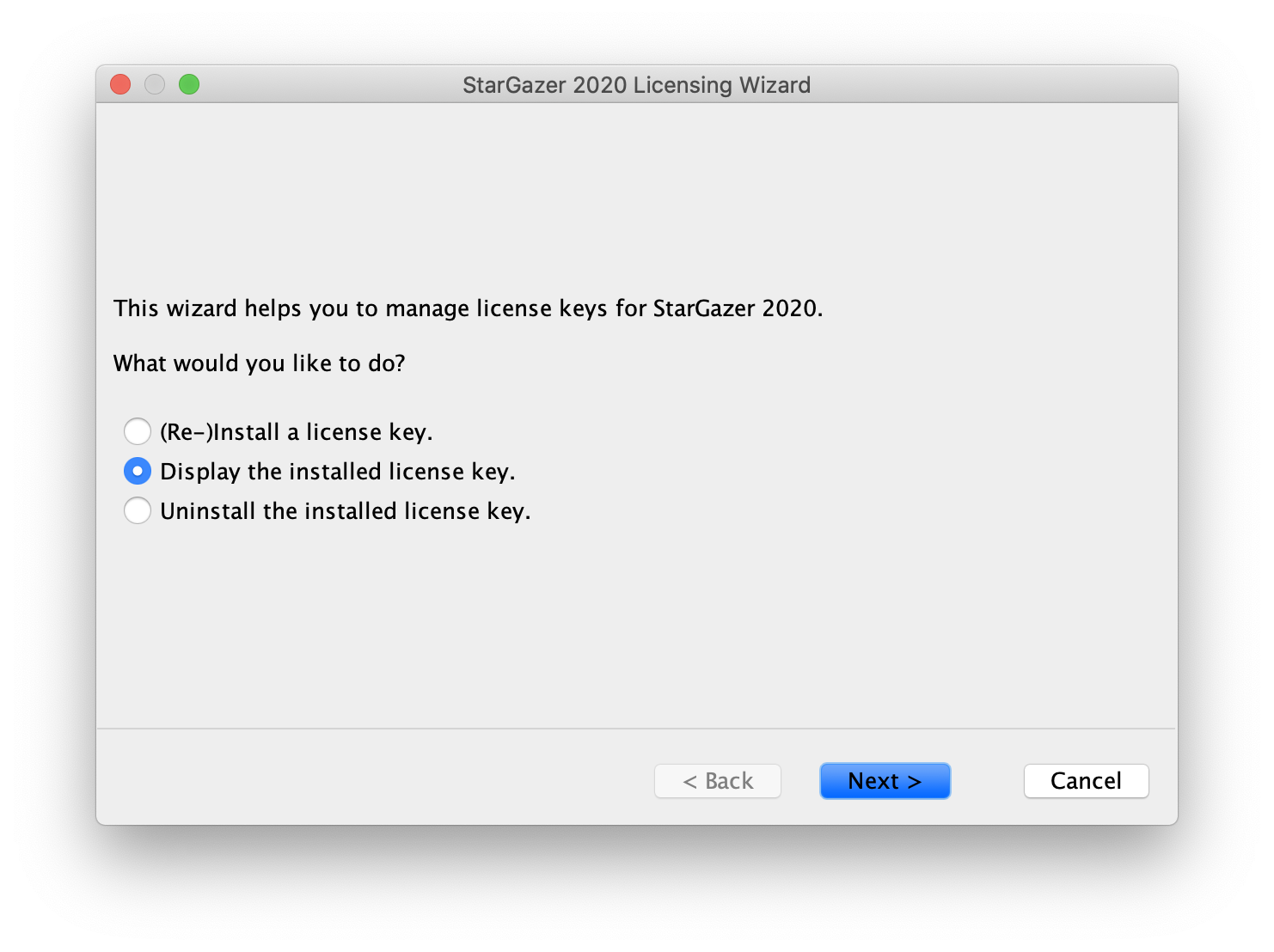
You can check this license key using the licensing wizard again:
TIP
As you can see, the installed license key has the "Not After" property set in order to expire the key after thirty days.
TIP
It's not possible to uninstall an FTP license key! A user can only override it by installing a regular license key. When the user uninstalls the regular license key, the FTP license key takes over again.
TIP
If you require your users to register before starting a free trial period, then you should not use this feature and consider configuring multiple editions instead. In that case, the edition string could look like "standard ftp".
Next Steps
Congratulations - you have successfully generated, verified, installed and uninstalled a regular and an FTP license key! Next, you should examine the generated project in order to learn how the API, CLI, GUI and WSI work together and how you can integrate them into your application.